
Crimson Desert and the 'Settings' Mini-Game
While we spent all our free time immersing ourselves in the massive and incredible world of the new open-world RPG — Crimson Desert, we've encountered a technical error that we simply cannot ignore. This is a story of how a single incorrect metadata element in the code can turn the visuals of the future into a dim and "grey" past.
Today, we won't be discussing the plot or the combat system. Instead, we are focusing on the main visual scandal of the release — the broken HDR.
Technical Issue: The 250-Nit Trap
The first thing you notice when launching the game is a muddy and blurry image with HDR enabled. On forums, this has been dubbed the "grey filter" effect. The problem actually isn't with the artists or the textures; it is a pure technical bug at the level of metadata negotiation between the game engine and the display.
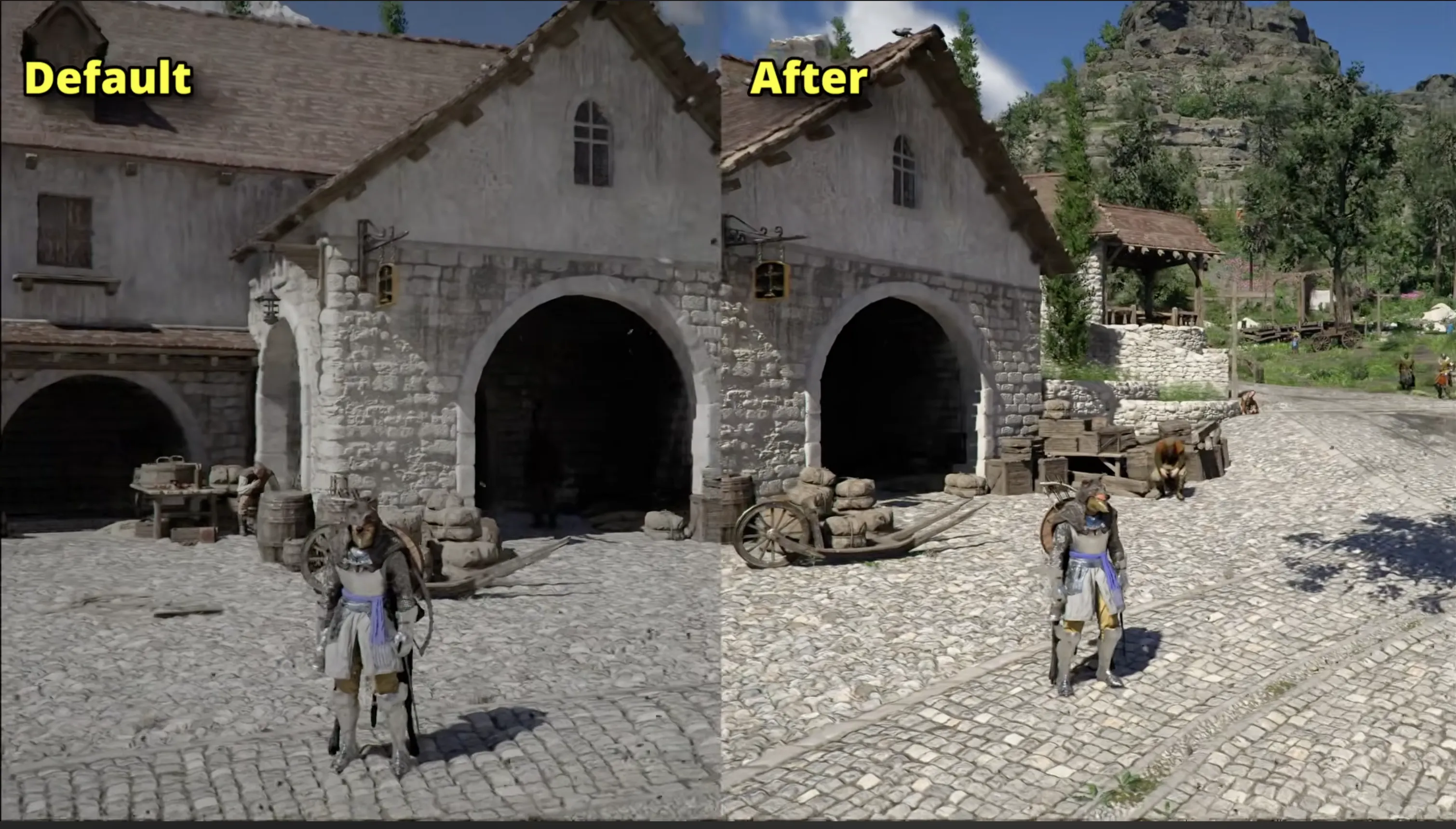
Source: YouTube channel @nezahualdoomer.
What's Happening Under the Hood?
Modern HDR games rely on the ST.2084 (PQ) curve, an absolute scale for luminance where every value corresponds to a specific light intensity (nits). Upon launching, the game must perform Tone Mapping – the process of adapting its internal range (which can reach 10,000 nits) to your screen's physical capabilities.
What happened? In many game engines, 250 nits is the standard level for "Paper White" in SDR or for UI reference brightness. Due to a bug in the EDID Handshake, the game mistakenly treats this level as Max Luminance (peak brightness) for the entire HDR frame.
The result. Instead of utilizing the 800 or 1,000 nits of your OLED, the game "squashes" its entire dynamic range into a narrow 250 nits. This kills contrast: bright sun glints become dim, and shadows lose their depth, turning into a grey mass.
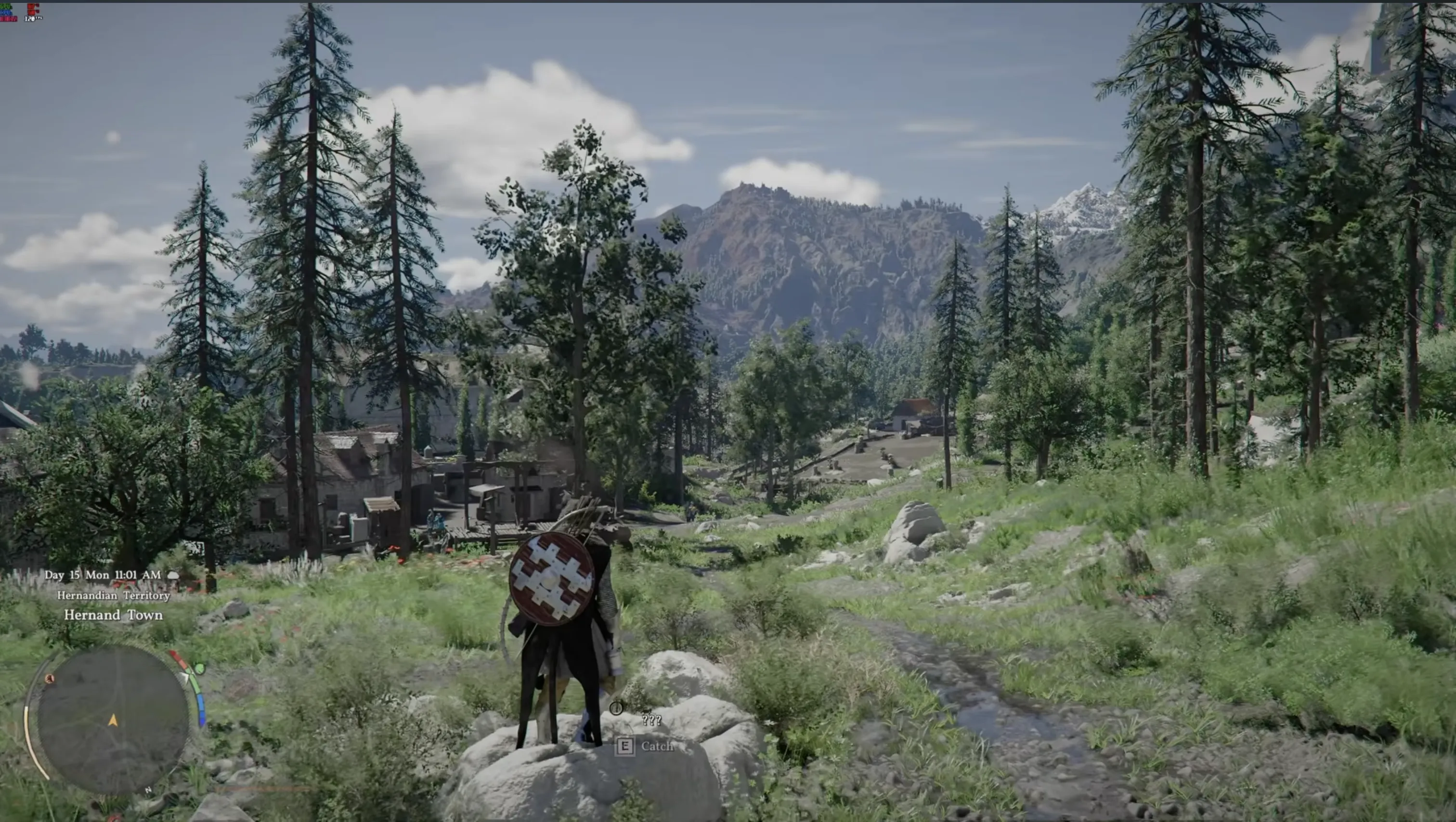
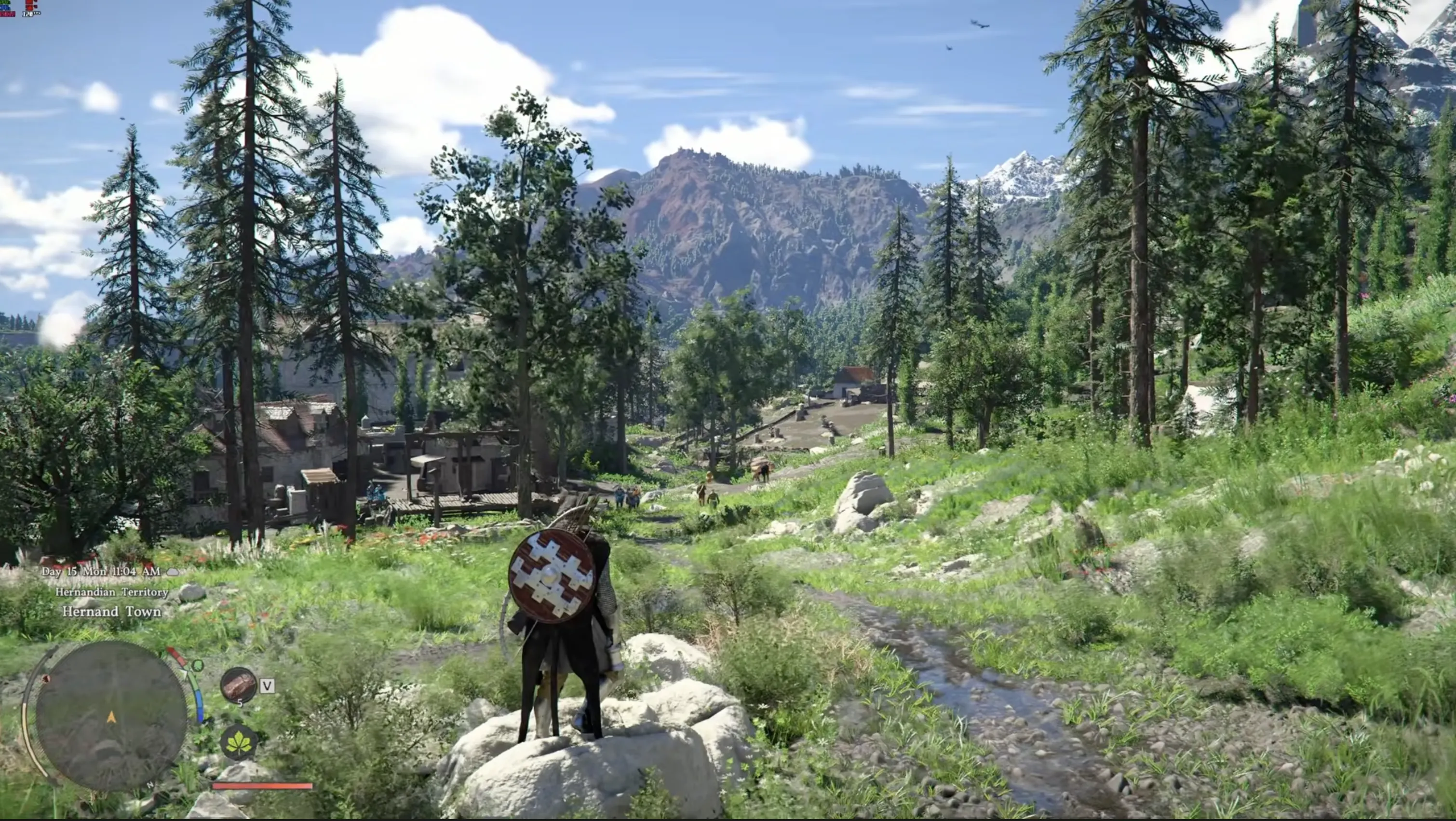
Source: YouTube channel @nezahualdoomer.
Why did the QA department miss this?
This is a classic example of a "blind spot" that occurs when testing in ideal laboratory conditions. QA labs often use reference professional monitors (like the Sony BVM-HX310) that ignore faulty metadata and display the image according to the internal signal.
In contrast, consumer TV models (LG C-series, Samsung OLED) are strictly guided by metadata. If the game says "my maximum is 250 nits," the TV obediently limits its panel brightness without triggering the full HDR mode. Players, by following the instruction to "adjust the slider until the icon is barely visible," effectively lock in this glitch.
Possible Solutions to the Problem
If we were tasked with the fix, we would propose the following actions:
- Add a check for MaxCLL (Maximum Content Light Level) values. If the system detects a value below 400 nits while HDR output is active, it should automatically trigger a fallback to a standard value that matches the hardware's specifications.
- Implement full support for the HGIG standard, so the game hands over Tone Mapping control to the TV or monitor itself, ignoring the engine's internal (and often incorrect) calculations.
- Replace the single static image on a white background with a comprehensive preview tool during UX calibration. For example, add the ability to see real-time brightness changes on fragments of the game world (both a sun-drenched landscape and a dark cave simultaneously).
Which HDR settings to choose?
After several tests, we found the optimal HDR settings for rehabilitating the defaults:
- Max Brightness: 5000-5300
- Exposure: 50-55
- UI Brightness: 45-50
Thanks to these settings, the graphics stop being "grey," and the atmospheric immersion begins to increase exponentially.
Conclusion
Crimson Desert is undoubtedly a great example of technical achievements in both graphics and gameplay; however, a single small error turns the initial immersion process into an additional exhausting "Settings" mini-game.
So pay close attention to your settings, and may your HDR always be functioning correctly!